When you create your video in YouTube, there is an option to create a custom size. The smallest pre-formatted size option is 420 X 315.
We find that 640 X 360 usually displays well.
You can create a different sized version by selecting the Custom Size option.
- go to your youtube video
- click on Share
- click on Embed
- click on drop down arrow to the right of Video size
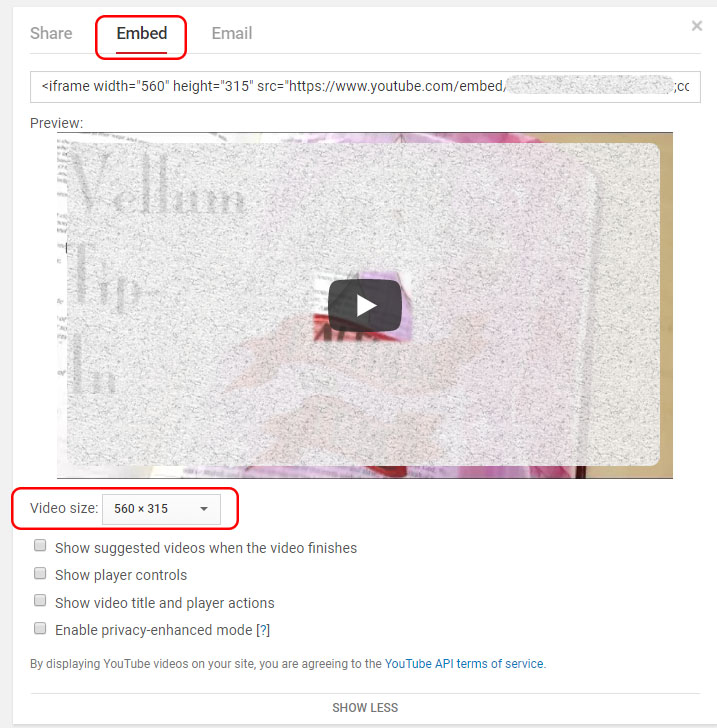
- select one of the options, or Custom Size and add custom dimension in first box
- the second dimension will auto fill (to keep proportion correct)
- copy the code
- then follow the steps in this FAQ for adding the video to your FASO website: How to Add Video or a Slideshow
If the video has already been added to your FASO website, follow these steps to change the dimensions in the code.
- from FASO Site dashboard
- access the editing page that contains your video or slideshow
- click < > Source code icon (above the text box field)
- In the video code, you'll see something like this:
width="420" height="315" - To make your video 20% larger (for example), add 20% to each of those numbers, so they would show as:
width="504" height="378"
Be sure to edit both numbers or else your video will not display correctly. - click OK
- click Save
If you are still in your Free Trial, it is not possible to add the Embed iFrame code until you become a paying client. This is due to the need to protect ourselves from malicious spammers.
You can become a paying client early and not loose any of your free time by clicking on the Activate Account button (upper left in your control panel).
This process will bill you for one month now and move your next billing date forward to accommodate any remaining Free Trial time.
11042026