In the world of technology, an avatar refers to a character that represents an online user.
The avatar that appears at the top right of your FASO account control panel and that shows when you post a comment to a blog comes from one of 3 places:
- the photo you added to your Artist Quick Facts page
- the photo you added to your About the Artist page using the Picture 1 dropdown option
- a universal avatar you create at a site like gravatar.com
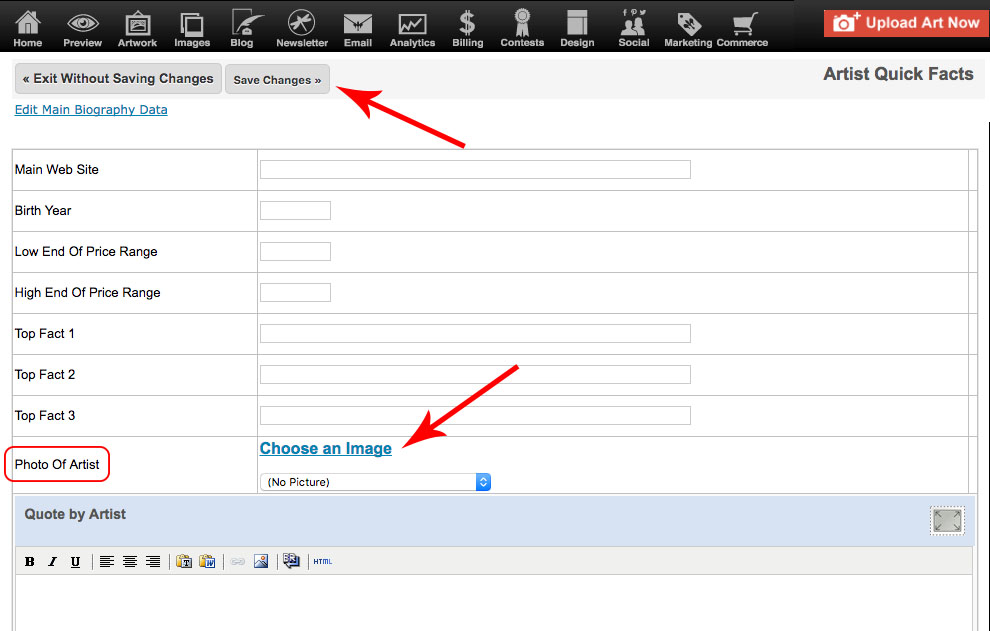
Artist Quick Facts Page Image
Make sure your image is already uploaded to the Images folder.
To upload:
- click Non-Art Images & Files (left menu - if you don't see the full options on the left, click the 3 bar menu icon, upper left corner)
- Images
- follow the prompts
Once image is uploaded:
- click About the Artist (left menu - if you don't see the full options on the left, click the 3 bar menu icon, upper left corner)
- click Artist Profile
OR
- click About the Artist (left menu - if you don't see the full options on the left, click the 3 bar menu icon, upper left corner)
- Biography
- Artist Quick Facts

THEN
- for Photo Of Artist, click Choose an Image or click the down arrow to select by title
- click Save Changes
About the Artist page, Picture 1 option
Make sure your image is already uploaded to the Images folder:
To upload:
- click Non-Art Images & Files (left menu - if you don't see the full options on the left, click the 3 bar menu icon, upper left corner)
- Images
- follow the prompts
Once image is uploaded:
- click About the Artist (left menu - if you don't see the full options on the left, click the 3 bar menu icon, upper left corner)
- Biography
- click Select Image (below the image box)
- select your image from the list
- Save your changes
To change image, you can click Change Image or Clear (buttons below the image)
Also see FAQ:
About Page Bio Pictures
Important Distinctions
If you have a photo uploaded to both your About the Artist Page (using the Picture 1 drop down) and your Focal Point Page, the avatar will default to the Focal Point Page image.
If you add your Bio photo to the text box area in your About the Artist page, instead of using the Picture 1 field, the FASO software will not be able to pick up that photo as your avatar. A box with a color graphic will show instead of a picture of your choice.
The avatar will only display on a blog comment as long as you are using the same email address that is on your FASO account (your Admin Email address).
Avatar Not Showing on Blog Comments
If you are commenting on a blog post and your avatar is not showing alongside your comment, it is most likely because you posted the comment from a different email address (an email address not associated with your avatar).
For FASO clients, you need to be commenting using your FASO account Admin Email address.
Avatar Examples
Blank Avatars:

Chosen Avatars:

For info on adding a favicon see this FAQ:
Add a Custom Browser Icon to Your Site ~ Favicon
09082026